Pay Period Rules are commonly used when RDO or Time in Lieu hours are accrued after a total of weekly or pay period hours rather than overtime.
This article provides an example of a Pay Period Rule configured to allocate hours worked over 38 hours in a week to RDO Accrued.
The 38-hour threshold is commonly used for full-time employees in Australia, but the applicable threshold may vary depending on the employee’s award or agreement, adjust hour settings as required for employees.
Notes
- Important: Update Payroll Settings to export Pay Period totals once in use.
- RDO Settings will need to enabled within System Settings - General for the RDO options to be available in Pay Period Rules
- Pay Period Rules are linked to the Daily Rules employees are assigned to.
- If not all employees require this Pay Period Rule, they will need to be assigned to a different daily rule.
To create a 38 hour RDO Pay Period Rule, follow these steps:
- Click Shift Setup
- Click Pay Period Rules
- Click Add (in top right)
- Name the Pay Period Rule - (example: 'RDO after 38 hours')
- Tick Calculate Weekly.
- Under Pay Code click ADD.
- Select the Ordinary Hours pay code.
- Enter Hours = 999 (so all hours on timesheet are included)
Note: If Fortnightly or Monthly Pay Period rule do not tick calculate weekly
- Select which pay code types should contribute towards the 38 Hour Pay Period calculation before RDO Hours are accrued.
- Tick all three hours types.
Daily Rule Pay Codes |
Behaviour |
|
Include Base Hours only Only Ordinary/Base Hours contribute towards the 38 Hour Pay Period Rule. OT1 and OT2 hours will export separately and will not count towards the 38 hour threshold. |
|
|
Include Base Hours + OT1 Hours Ordinary/Base Hours and OT1 Hours contribute towards the 38 Hour Pay Period Rule. OT2 hours will export separately and will not count towards the 38 hour threshold. |
|
|
Include Base Hours + OT1 + OT2 Hours All hours configured within the Daily Rule contribute towards the 38 Hour Pay Period Rule. |
Daily Rule Settings
-
Select the Daily Rules that should use this Pay Period Rule.
Note: Greyed out daily rules have been enabled on another pay period rule
Leave Settings
- Select any Leave codes that should contribute towards the Pay Period Rule calculation.
- Click Save Pay Period Rule
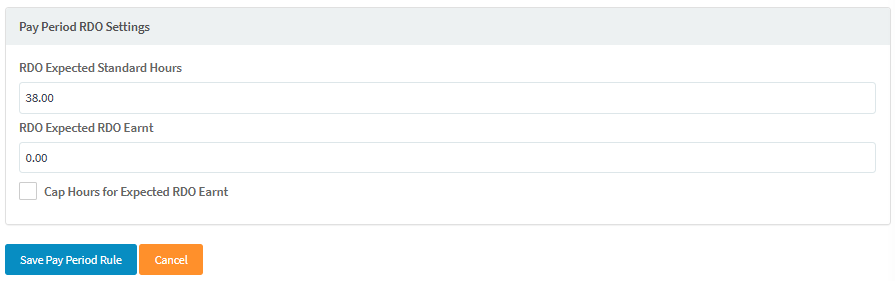
Pay Period RDO Settings
- RDO Expected Standard Hours - Input 38hours.
- RDO Expected RDO Earnt
- input 0.00 so all time after 38 hours will be RDO Earnt
- If RDO Earnt hours are capped input 2 hours, and tick the cap hours toggle.
- Click Save Pay Period Rule
Time Sheet Example
Now when viewing employee timesheets there will be a Pay Period Totals section at the bottom of the page.
Once the employee exceeds 38 hours, RDO Earnt hours will display within the Pay Period Totals section and also on the final day of the pay period.
Where to Next?